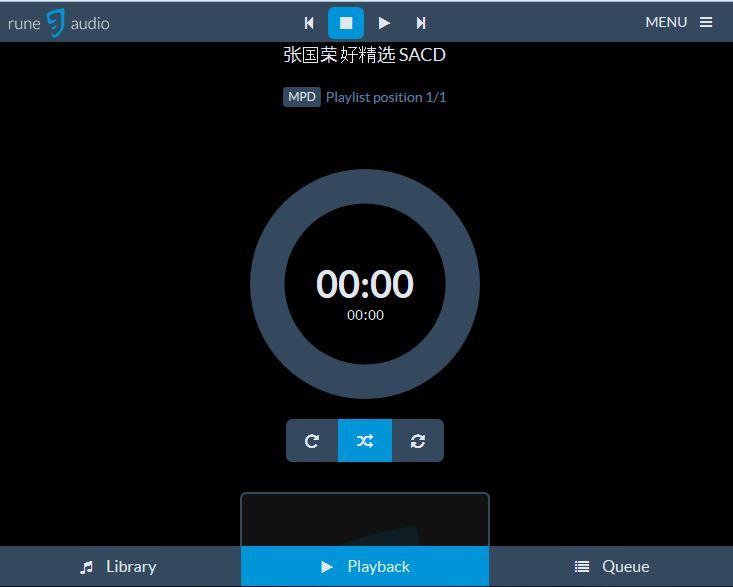
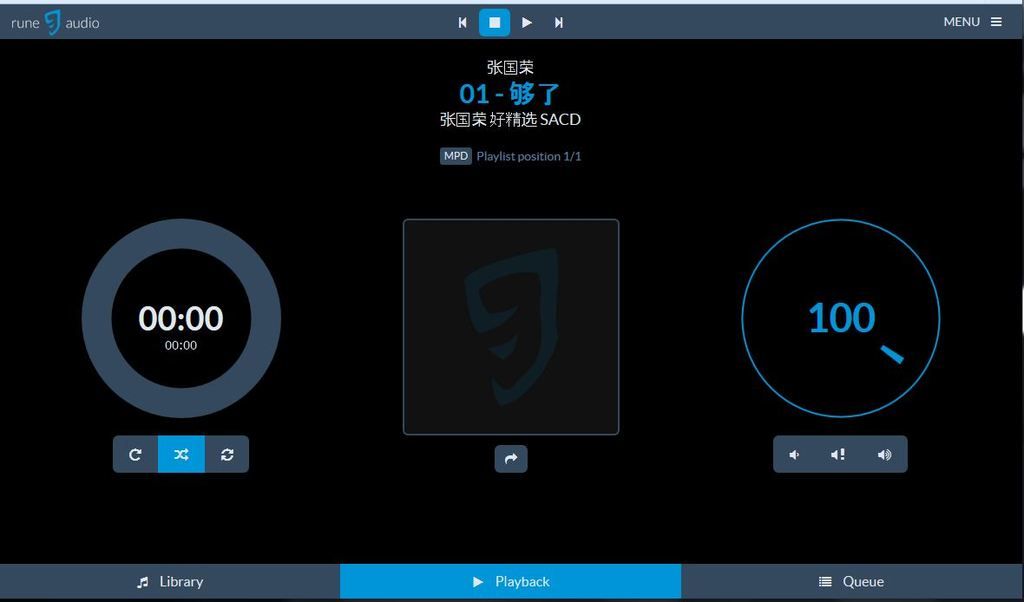
I was able to get a Waveshare Spotpear 3.5" resistive touch screen working with Rune Audio (RuneAudio_rpi2_rp3_0.4-beta_20160321_2GB.img) on a Raspberry Pi 3.
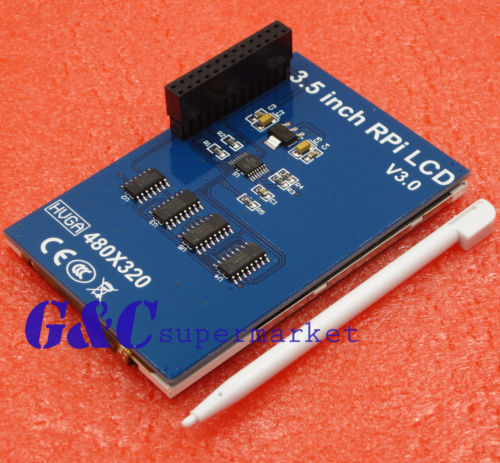
- s-l500.jpg (67.36 KiB) Viewed 23772 times
Responsiveness is a bit erratic; a stylus is pretty much mandatory. Scrolling can be a challenge.
I also used this method for a no brand screen I got from ebay, although the screen was rotated 180 degrees.
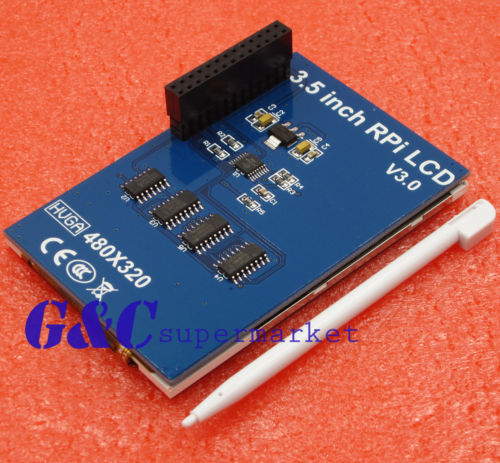
- s-l500.jpg (67.36 KiB) Viewed 23772 times
I got the screen to work by basically burning the Waveshare Raspbian Jessie Ready to Use image
https://drive.google.com/open?id=0B8Xjwnqc7XAMNHdKdGJ6bkpxZHc, and then noting the changes to the relevant files that were specific to the Waveshare screen. It results in basically the same configuration as using the driver installation method detailed on the Waveshare Wiki
http://www.waveshare.com/wiki/3.5inch_RPi_LCD_(A)#Software. I didn't use that method because I didn't want the Rune Audio
config.txt and
cmdline.txt files overwritten during the Waveshare driver installation.
Here is a step by step guide (of course, I can't guarantee that this will work for everybody; I've used it several times):
1. Install the "xf86-video-fbturbo" package
pacman -S xf86-video-fbturbo
2. Copy the waveshare driver (waveshare35a-overlay.dtb) to /boot/overlays. The driver can be found on the CD that comes with the screen, or it can be obtained as part of the driver package on the Waveshare Wiki.
http://www.waveshare.com/w/upload/2/24/LCD-show-160520.tar.gz
3. Add the following to
/boot/config.txt:
start_x=1
gpu_mem=128
core_freq=250
sdram_freq=400
over_voltage=0
dtparam=spi=on
dtoverlay=waveshare35a
dtoverlay=ads7846,cs=1,penirq=17,penirq_pull=2,speed=1000000,keep_vref_on=1,swapxy=1,pmax=255,xohms=60,xmin=200,xmax=3900,ymin=200,ymax=3900
dtparam=i2c_arm=on
dtoverlay=w1-gpio-pullup,gpiopin=4,extpullup=1
4. Add the following at the end of
/boot/cmdline.txt:
fbcon=map:10 fbcon=font:ProFont6x11 logo.nologo
5. Create the file
/etc/X11/xorg.conf.d/99-calibration.conf and insert the following:
Section "InputClass"
Identifier "calibration"
MatchProduct "ADS7846 Touchscreen"
Option "Calibration" "3932 300 294 3801"
Option "SwapAxes" "1"
EndSection
6. In
/etc/X11/xorg.conf.d/99-fbturbo.conf, change
Option "fbdev" "/dev/fb0"
to
Option "fbdev" "/dev/fb1"
7. Add the following to
/etc/modules-load.d/raspberrypi.conf:
i2c-bcm2708
i2c-dev
flexfb width=320 height=480 regwidth=16 init=-1,0xb0,0x0,-1,0x11,-2,250,-1,0x3A,0x55,-1,0xC2,0x44,-1,0xC5,0x00,0x00,0x00,0x00,-1,0xE0,0x0F,0x1F,0x1C,0x0C,0x0F,0x08,0x48,0x98,0x37,0x0A,0x13,0x04,0x11,0x0D,0x00,-1,0xE1,0x0F,0x32,0x2E,0x0B,0x0D,0x05,0x47,0x75,0x37,0x06,0x10,0x03,0x24,0x20,0x00,-1,0xE2,0x0F,0x32,0x2E,0x0B,0x0D,0x05,0x47,0x75,0x37,0x06,0x10,0x03,0x24,0x20,0x00,-1,0x36,0x28,-1,0x11,-1,0x29,-3
fbtft_device debug=3 rotate=90 name=flexfb speed=16000000 gpios=reset:25,dc:24
ads7846_device model=7846 cs=1 gpio_pendown=17 keep_vref_on=1 swap_xy=1 pressure_max=255 x_plate_ohms=60 x_min=200 x_max=3900 y_min=200 y_max=3900
Note: The last 3 lines re: flexfb; fbtft; and ads7846_device were commented out on the Waveshare Raspberry Jessie Ready to Use image; however, they were not commented out on the Driver Installation package from the Waveshare Wiki.
8. Reboot
If you want to rotate the screen, then in
/boot/config.txt change
dtoverlay=waveshare35a-overlay.dtb
to
dtoverlay=waveshare35a-overlay.dtb,rotate=270
If you rotate the screen, or if the calibration is off, you will have to calibrate the screen. I used the method from this excellent post:
#2868213
Cheers,
Rod