Hello,
Yes, I can try to help you, but I must warn you in advance, I do not own such a TFT-Modul, so you'll have to do most of the heavy lifting. So please, if a step fails, tell me and supply as much usable information as you can ("It did not work" will not help me much). Also since I do not know, how experienced you are with linux, I'll try to keep things as simple as possible.
It is not a surprise, that the instruction do not work. They have been written for the official Raspbian image based on debian. RuneAudio itself runs on Arch Linux.
1. Step: Hardware test
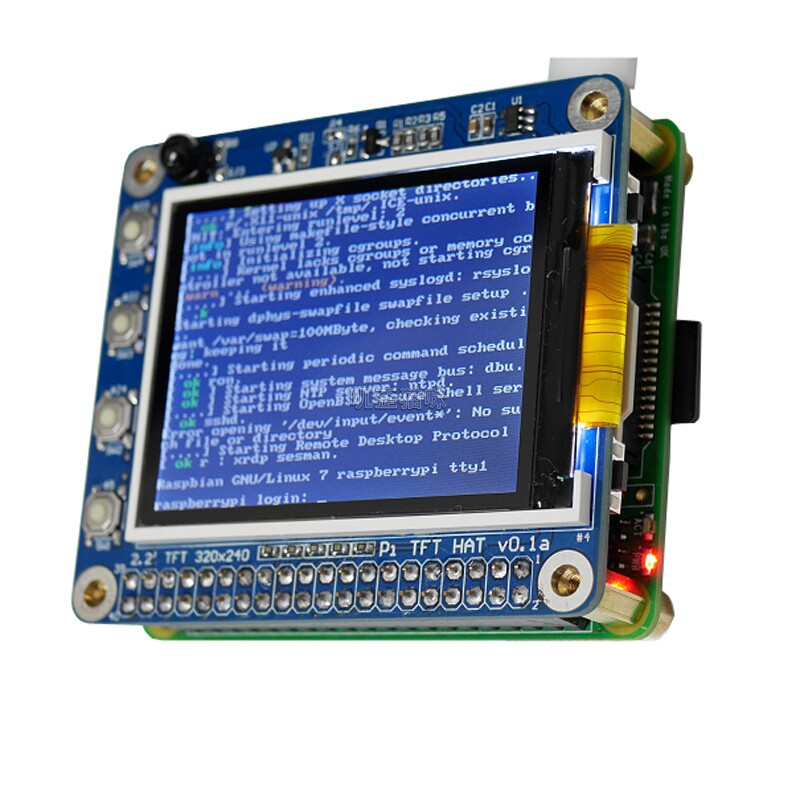
First of all, your display differs slightly from the one linked in the adafruit blog post. So as a first step, you'll have to try if it works as expected with the drivers from the website. Have you tried the premade image on the adafruit website to verify, that your hardware works and is compatible? If not, please download the "Ready to Go" jessie image (
https://learn.adafruit.com/adafruit-2-2-pitft-hat-320-240-primary-display-for-raspberry-pi/easy-install#ready-to-go-image) and boot the pi to see it working.
It only makes sense to proceed, if we can be sure, that the instructions will work for your display.
2. Step: Install the Runeaudio image
Please use the image created by hondagx35 for the raspberry pi 3 from here:
#325687
It should be the same as the one from the main download page, but I can not swear.
2. Step: Use the helper script
When you boot up rune, you should not see anything on the display. That's okay, since we have to install the drivers.
So SSH into your raspberry pi (f.e. with putty). The default credential are user "root" and password "rune".
The helper script from adafruit should work with the runeaudio image. To use it, execute the following commands:
Get the device tree overlay:
curl -L --output /boot/overlay/pitft22.dtb https://github.com/AndrewFromMelbourne/raspi-device-tree/raw/master/pitft22-overlay.dtb
Get the script and make it executable:
curl -L --output /root/adafruit-pitft-helper https://raw.githubusercontent.com/adafruit/Adafruit-PiTFT-Helper/master/adafruit-pitft-helper && chmod +x /root/adafruit-pitft-helper
Execute it:
export SYSTEMD=1 && /root/adafruit-pitft-helper -t 22 -u /root
Then follow the description on the adafruit website
after the Text "This will install the 2.2" type of PiTFT into the current install.". If you get any "Exiting due to error" text printed anywhere in the progress, copy and paste the whole output of the last command in a code-tag.
3. Step: Enable the local browser
On your PC navigate your web browser to
http://runeaudio (or http://<ip-of-the-raspberry-pi>). In the Settings, enable the local browser.
After that restart your raspberry pi. If all went well, you should see a local browser after the startup.
Greetings and good luck,
Simon