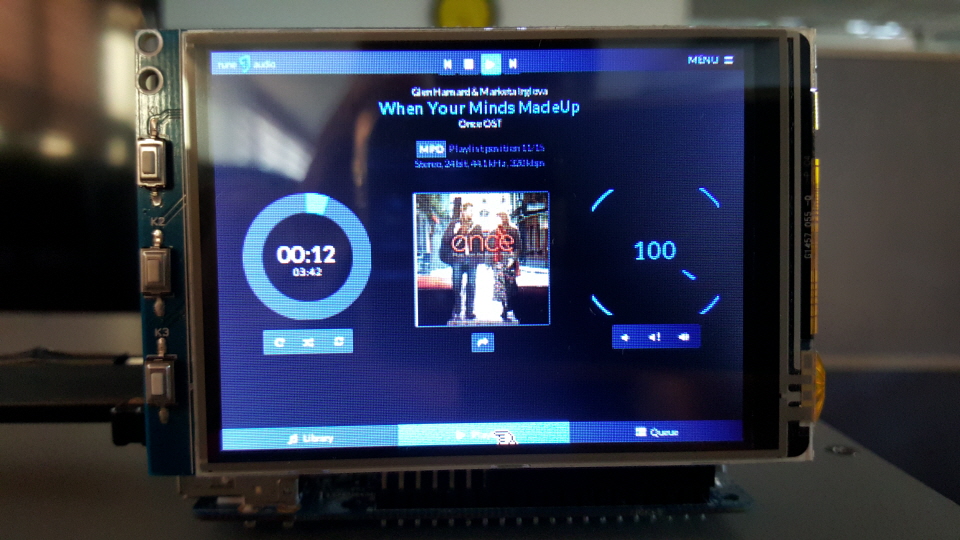
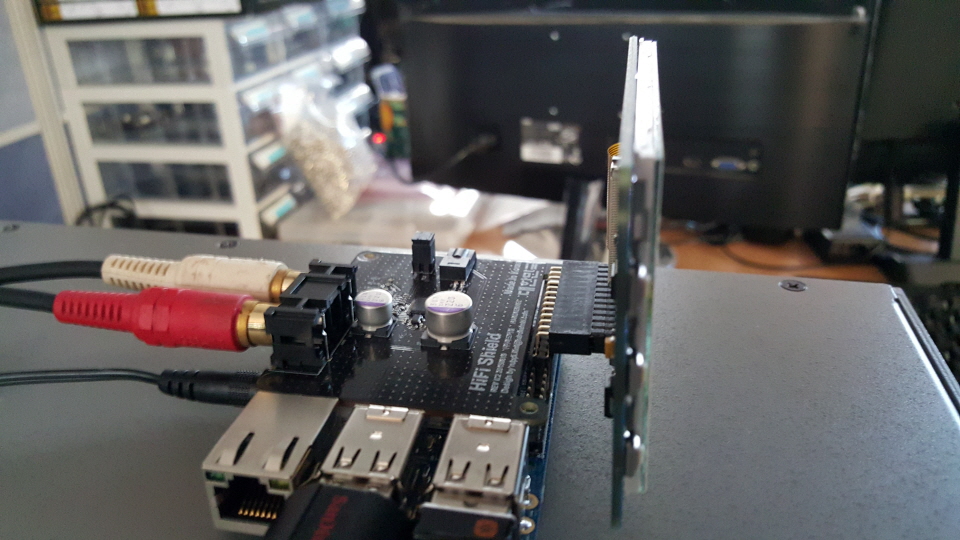
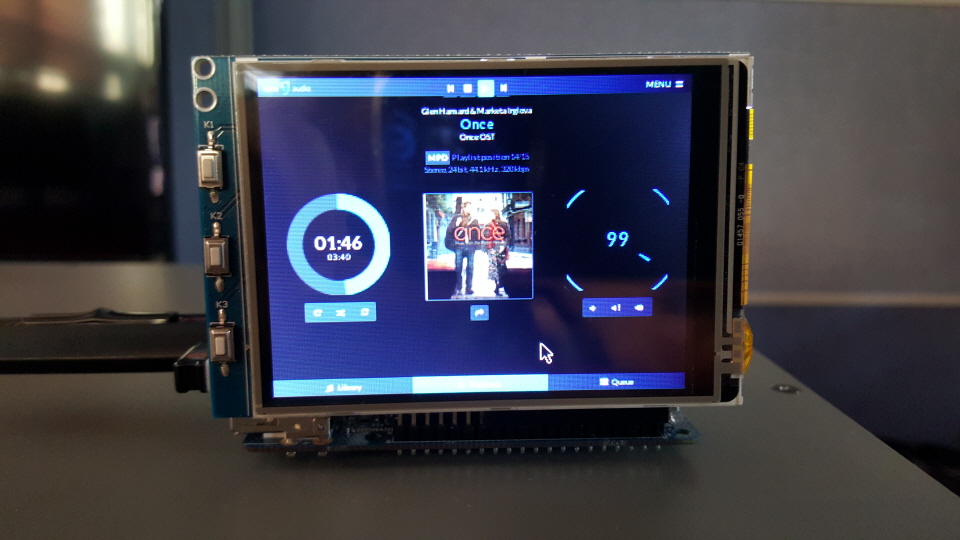
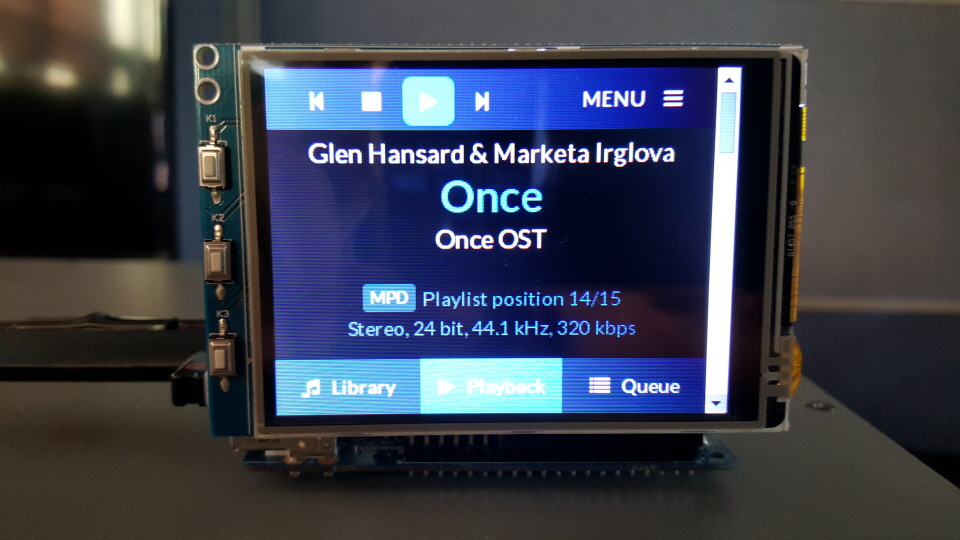
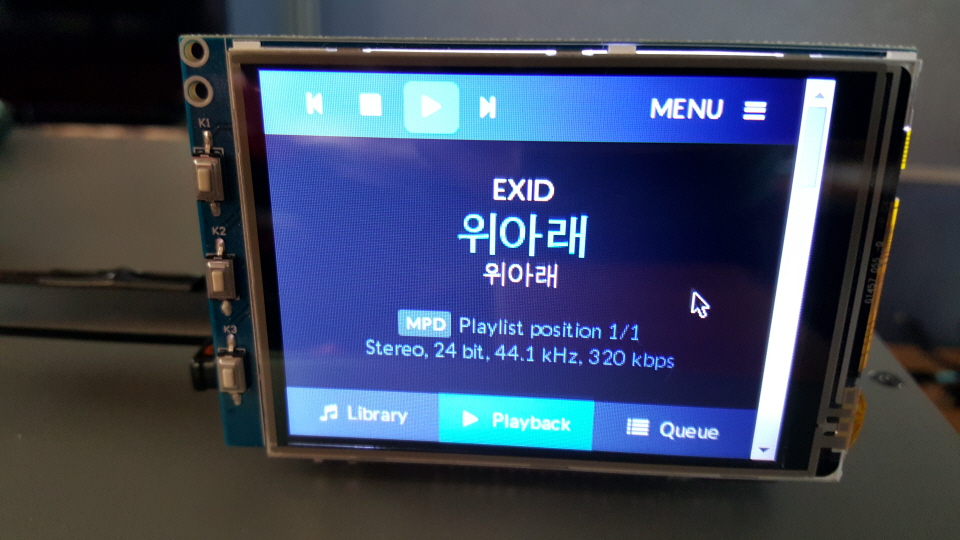
I had no time.. Sorry.
Here is brief guide I wrote on my notepad. Please try it ant let me know what's not working or missing.
Let's try it with a HDMI TV or monitor first. I will write another guide for the small 3.2inch TFT LCD later.
Install the RuneAudio OS image for C1+ on your eMMC or SD
RuneAudio_odroid-c1_0.3-dev_20150824_2GB.img
Use the serial console (with ODROID USB-UART kit) or SSH to the IP address given to the board by your router.
Install video driver files (one for HDMI and the other one for TFT-LCD)
pacman -S xf86-video-odroid-c1 xf86-video-fbdev
Install xorg server
pacman -S xorg-server
Install xorg-xinit, which provides both xinit and startx.
pacman -S xorg-xinit
Install lxde Desktop GUI
pacman -S lxde
Install an extra font if you need. I installed Korean font because I want to display the song information in our character set.
pacman -S ttf-baekmuk
Download a working Chromium browser and install it. (Official ALARM package didn't work)
wget http://odroidxu.leeharris.me.uk/chromium-44.0.2403.107-1-armv7h.pkg.tar.xz
sudo pacman -U chromium-44.0.2403.107-1-armv7h.pkg.tar.xz
If you edit /etc/pacman.conf and set
IgnorePkg = chromium
it won't get upgraded accidentally.
Reboot your ODROID and Run LXDE on the command line on the HDMI screen.
lxdm
Test the RuneAudio UI on the HDMI screen. It should work with below command.
chromium --user-data-dir --kiosk 127.0.0.1
How to do "auto-login" on the HDMI console.
Run
systemctl edit getty@tty1
And copy and paste below lines and save it.
[Service]
ExecStart=
ExecStart=-/usr/bin/agetty --autologin root --noclear %I 38400 linux
How to do "auto-start lxde". Make .bash_profile in /root/ directory with below contents.
#
# ~/.bash_profile
#
echo Run me first
if [[ -z $DISPLAY ]] && [[ $(tty) = /dev/tty1 ]]; then
exec lxdm
fi
Enable auto login of LXDE
"nano /etc/lxdm/lxdm.conf" and edit the second line like this
## uncomment and set autologin username to enable autologin
autologin=root
Auto start the Chromium browser in full screen mode
Edit this file.
nano /etc/xdg/lxsession/LXDE/autostart
Add this line at the end.
@chromium --user-data-dir --kiosk 127.0.0.1
You can see the RuneAudio Web UI on the HDMI just after power-on your ODROID fully automatically.
If it works, I will prepare an additional instruction to work with 3.2inch TFT screen as well as touch screen.